

 Grasshopper
The Grasshopper client of Parametric Robot Control was developed exclusively for Rhino 8 on both Windows and macOS. The Rhino 8 .NET Runtime needs to be set to NETCore in the SetDotNetRuntime command.
An early version of a tutorial is available below. The final version will be posted at a later date through the SCALExD project. Refer to the video description to download the used files. Please note that some parts of PRC have since been updated.
The primary component of PRC in Grasshopper is the Core component, which consumes all the robot process data and formats and forwards it to the server. Then it displays the simulation result.
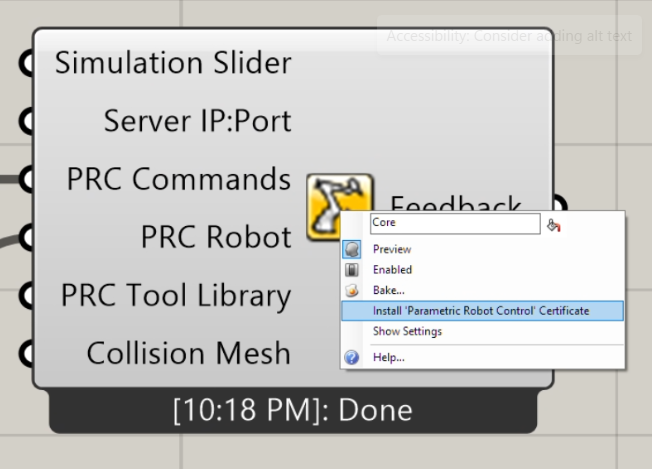
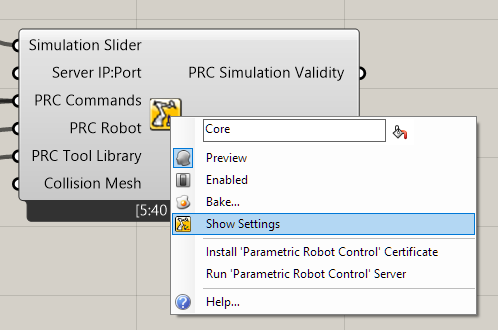
You can right-click the Core component to either install the certificate for encrypted communication, or select "Show Settings" to open a WebView windows in Rhino.
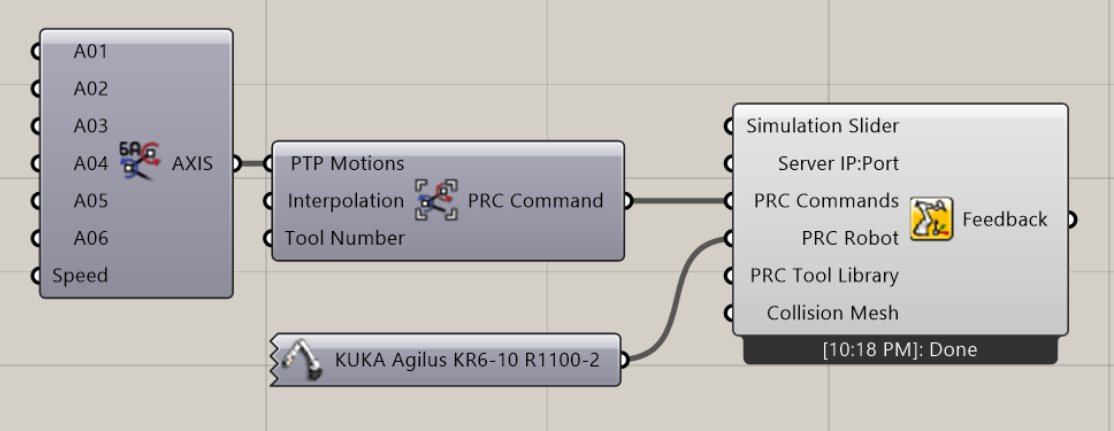
The most simple PRC program consists of a Core component, a robot model, and an Axis motion that is plugged into a PTP Motion Group. Unless otherwise defined, it will use Tool 0 and Base 0, with the default https://localhost:5001 chosen for the server connection. A Core with only a robot connected shows the robot at its home position; the commands can follow later.
A more complex program would look as below:
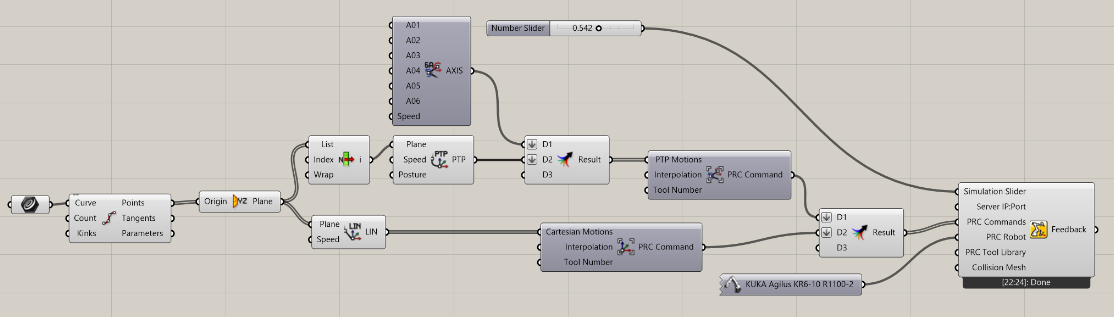
Here, the program starts with an Axis motion. It takes the first position of a toolpath and turns it into a PTP motion with a defined posture. Both are plugged into a PTP Motion Group. The curve itself is followed by a series of LIN motions, plugged into a CP Motion Group.
Changing the value of the simulation slider between 0.0-1.0 updates the simulation. If the toolpath contains a non-reachable position, the Core component turns red. In addition, per-motion issues (collision, reach, external-axis reach, singularity) are shown as small badges directly on the motion components that produced them, so problems can be traced back to their origin without hunting through the whole definition.
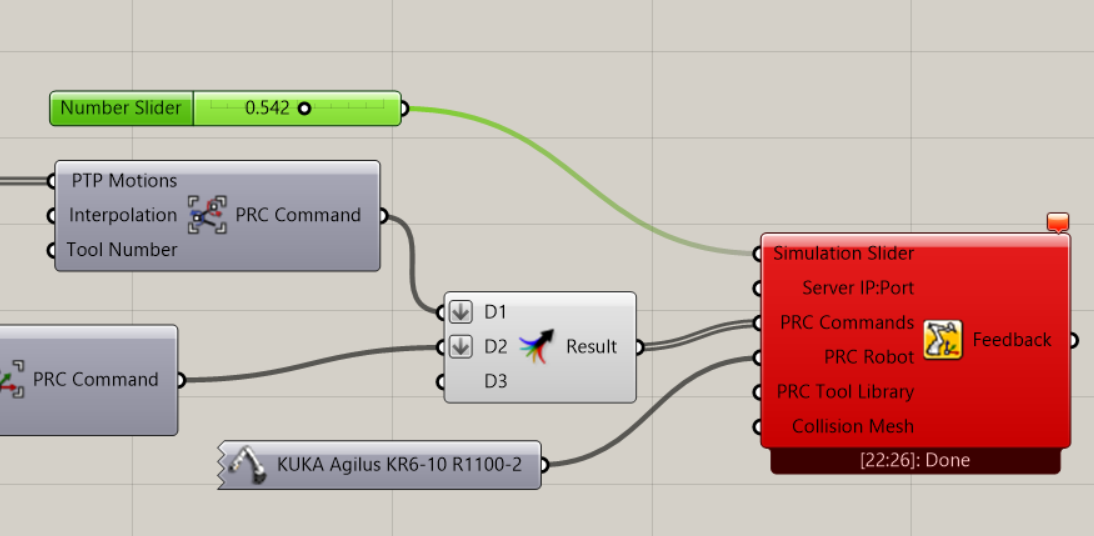
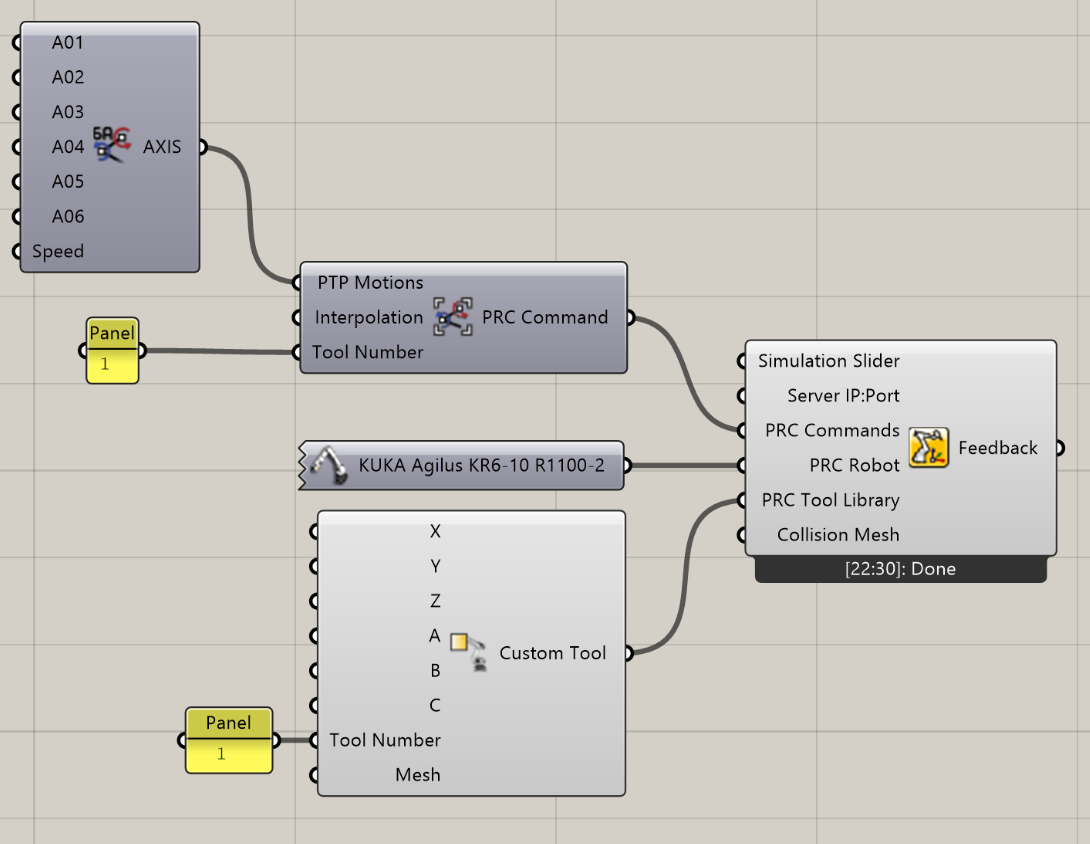
All tools (with the exception of tool 0) have to be plugged into the PRC Tool Library input. The Motion Group then contains only the ID of the tool.
You can access the settings directly through the browser at https://localhost:5001 or alternatively use the embedded browser in Rhino by right-clicking the Core component.
Custom robots, external axes and settings#
Robots that are not in the library can be built with the Custom Robot component from link meshes (one tree branch per link), six axis planes, limits and speeds, choosing the kinematics family (KUKA, KUKA offset-wrist, ABB, FANUC, UR, NEURA, igus). The axis planes must follow the layout of that family – compare a library robot of the same family. Custom Linear Axis, Custom Rotary Positioner and Custom 2-Axis Positioner build external axes the same way, and every rotary positioner – the KUKA units included – takes an optional Workpiece Mesh (plus Workpiece Collision hulls) that moves and is collision-checked with the table. Meshes with a very high face count trigger a warning; reduce them with Rhino's ReduceMesh command.
Collision hulls come from the Collision Geometry Builder, which covers the input meshes within a tolerance in mm – smaller is more accurate and needs more hulls, up to the maximum you set. Custom Tool, Custom Robot and the custom axes build their own hulls when no collision geometry is connected and keep them in the definition, so a reopened file does not rebuild them.
The Core Settings Override component (section after Core IGUS) offers one input per driver setting and builds the JSON for a Core's Settings Override input, so settings can be driven from the definition instead of the Settings page.
The seven-axis KUKA LBR iiwa runs on the Core KUKA Sunrise component; the KSS, IO Builder and mxAutomation cores refuse it. With the driver's Execution Mode set to Online, the core's RUN input sends the program or the servo target to the robot and stops it when set to false; the Streaming Mode setting chooses whether a new program replaces the running one, is queued behind it, or the robot follows the latest target live. Motion modifiers are named Motion: Set External Axis, Motion: Set Redundancy and Motion: Set Compliance (Sunrise).
Ribbon layout#
The robots live in two ribbon sections: KUKA Robots, grouped by payload class plus the KUKA positioners, and Other Robots with ABB, FANUC, igus, NEURA and Universal Robots, followed by the custom robot and axis components, Modify Robot and Robot Cell. The Robot Cell is drawn ghosted, so the robot stays visible inside it.
A LIN, PTP, AXIS or CIRC motion goes through a Cartesian Path, PTP Path or Smart Path component before it reaches the Core's PRC Commands input. A motion wired in directly is reported by the Core together with that hint.
Examples are available in the Sample Projects section.